
Photo mosaic guide
How to make a photo mosaic from your own photos
A photo mosaic uses many small pictures to recreate one larger image. The best results begin with a clear main photo, a varied set of tile photos and a few deliberate choices about detail and repetition.
Get the free mosaic makerBefore you start
Choose photos that work together
Pick a main image with a recognizable subject. A portrait, pet or landmark with a clear outline is easier to read from across the room than a busy scene with many small subjects. The main image determines the shape and overall color of the finished mosaic.
Collect the photos that will become tiles. A varied library gives the app more colors and textures to work with. Include bright and dark images, different backgrounds and different compositions. If many files are near-identical, the same look can repeat across the mosaic.
Keep the originals where they are. Photo Mosaic Creator Pro uses the photos you choose to build the mosaic; its product page states that the original image files are not edited.
Create and refine
Build the image in four passes
1. Set the main picture and tile photos
Choose the larger picture you want people to recognize, then select the photos that will make up its smaller tiles. Start with the pictures you actually want to see when someone looks closely at the finished piece.
2. Judge it at two distances
Look at the whole image first: does the subject read clearly? Then zoom in: are the individual photos interesting and recognizable? A mosaic needs both views to work. The app lets you watch the image appear tile by tile and inspect the detail.
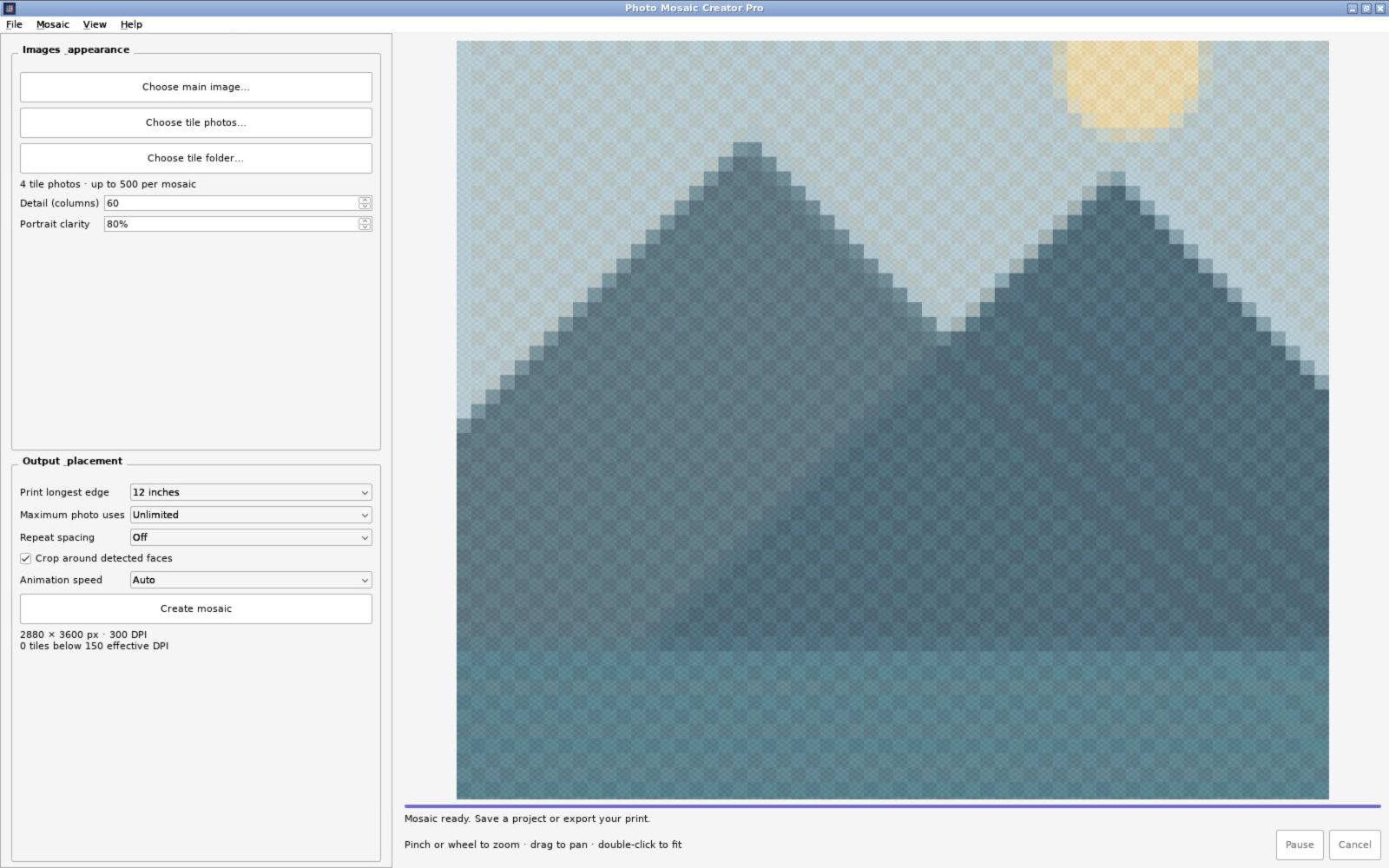
3. Adjust detail and repetition
If the large subject is hard to recognize, refine tile detail or portrait clarity. If the same small image appears too often, adjust photo reuse and spacing. Make one change at a time and check both the full image and the tile close-up again.
4. Export for the intended use
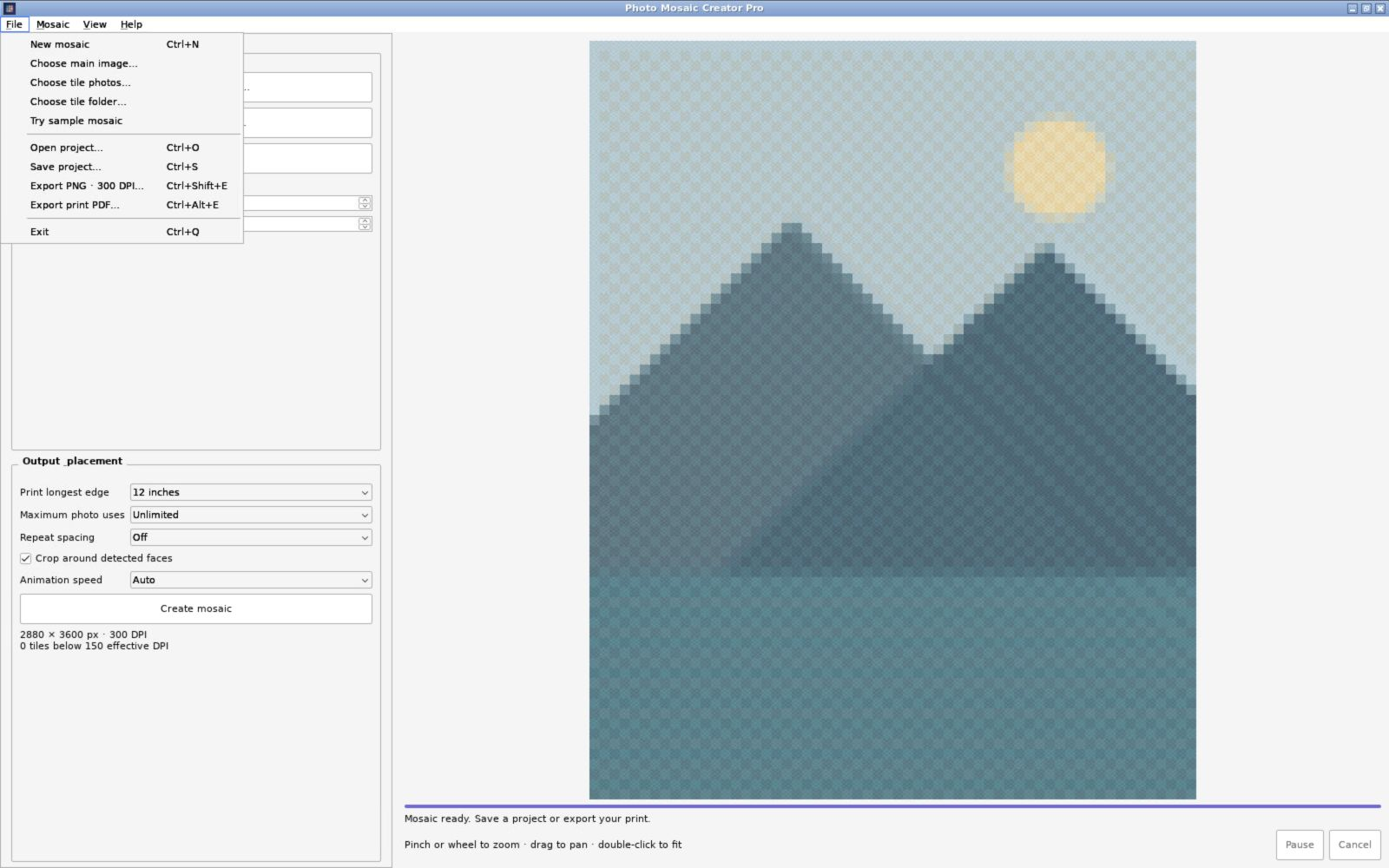
For a digital image, export a PNG. For a print project, use the print-ready PDF or 300 DPI PNG option. The app lists export sizes up to 24 inches on the longest edge; check the dimensions required by your printer before committing to a large print.
Quick checks
Make the finished mosaic easier to enjoy
- Check the face or focal point first. If it is not clear at a distance, adjust the detail before adding more tile photos.
- Inspect repeated tiles. Repetition can create visible patterns that distract from the main picture; the reuse and spacing controls help you tune it.
- Test at the final size. A mosaic that looks crisp on a laptop can feel different when printed. Review the exported file at the size you plan to use.
The Photo Mosaic Creator Pro page has platform-specific downloads for Windows, macOS, Linux and an Android developer preview, along with the latest notes about each edition.